Add a Node on the LFG Dashboard
Learn how to add your LFG node to the LFG Node Dashboard after HostDudes gets your machine up and running.
Before you start
This article assumes you have joined the HostDudes Discord, opened a hosting ticket, and received your node details from the HostDudes team. HostDudes prepares the machine, then you connect your own wallet on the official LFG Node Dashboard to add the node.
HostDudes will never ask for your seed phrase or the private key that controls your wallet. See what access HostDudes needs for the full picture.
-
Verify and open a ticket
Once inside, click the Verify button in the verify-here channel to unlock the server. Then head to the support-center channel and open a ticket with the Need Support or Hosting? button. Tell us which LFG node you want hosted and include your billing email.

Example ticket message with a node request and billing email. -
Wait for HostDudes to prepare your machine
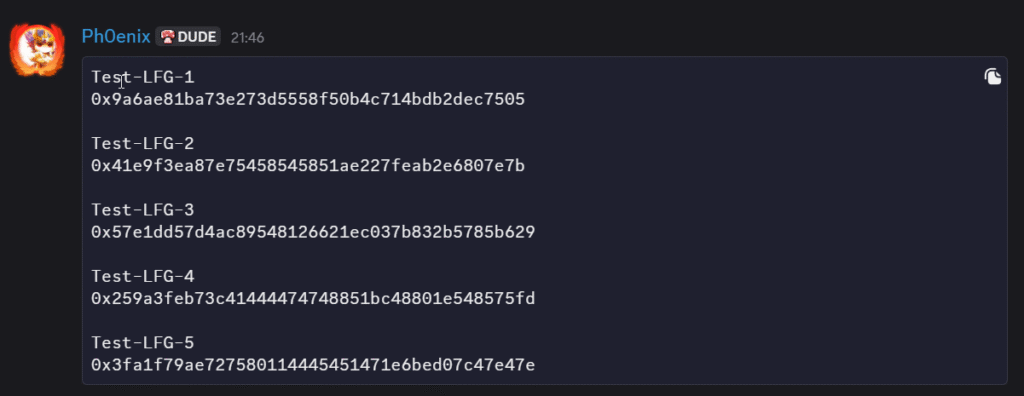
We will handle the machine setup. Once it is ready, you will get a message like the one below with the details you need to add the node to the LFG Node Dashboard.
-
Connect your wallet on the official LFG dashboard
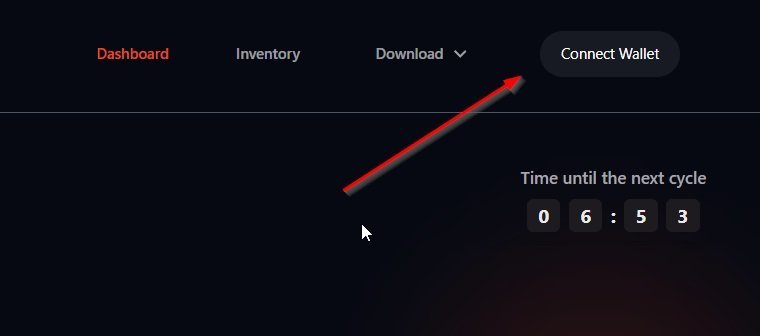
Visit the official LFG Node Dashboard and click Connect Wallet at the top of the page, then follow the prompts to connect your wallet. HostDudes will never ask for your seed phrase or the private key that controls your wallet.
-
Add a new node
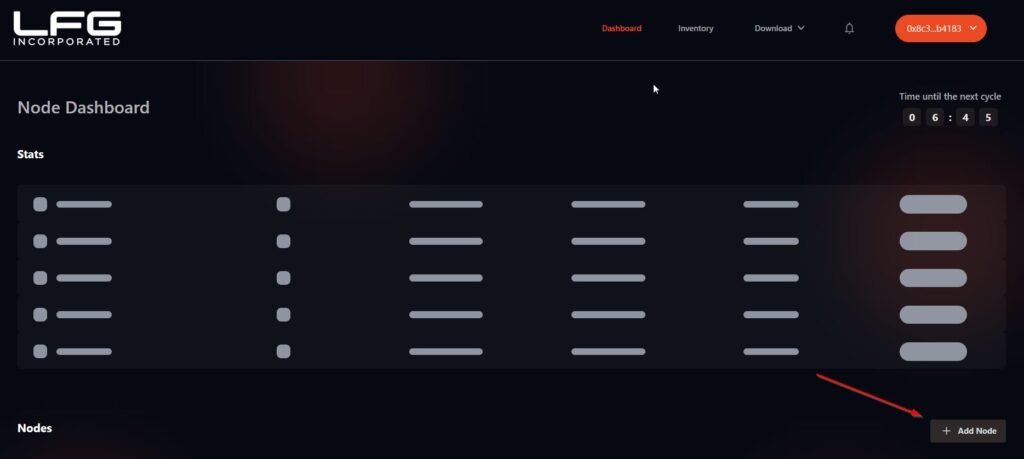
Once connected, click the Add Node button located at the bottom right of the page.
-
Enter the node details from Discord
- Node Address: provided to you in Discord.
- Node Name: you can choose your own, but we recommend using the one provided for easier tracking.

-
Add the node and wait for it to come online
Click the Add button to complete the process. Your node should appear online after the dashboard finishes processing it.



Need help finishing your LFG setup?
Your node should appear online within about 10 minutes. If you run into any issues, open a Discord ticket and the HostDudes team will help you through it.
Ask in Discord